Barcode Inventory System: Set One Up With the Phone You Already Own
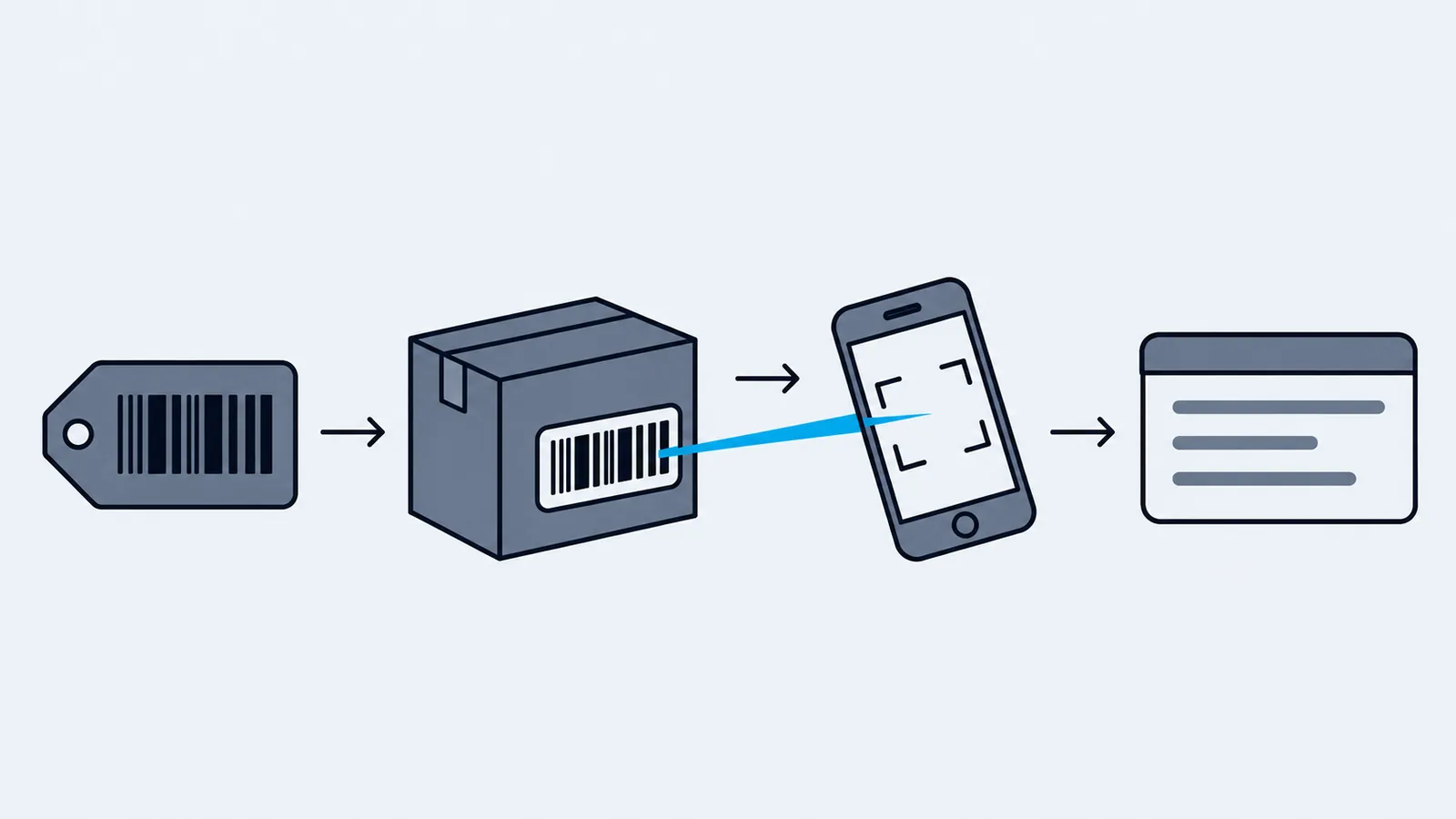
You can build a barcode inventory system today with a phone and a sheet of adhesive labels, and find out whether it works before you buy a single scanner. The hardware is the cheapest and last decision. The first one, giving every item a unique code, is the hard one.
The reason to bother is accuracy. When someone types a SKU, there's a chance of a wrong digit, a transposed letter or a guess. A scan either matches a record or it doesn't.
Four parts
- A unique code for every item. One code, one product or variant. If two products share a code, scanning is ambiguous forever.
- A label that carries the code, on the box, shelf or bin, with the human-readable number underneath so a scuffed label can still be typed.
- A way to read it: a phone camera, a USB or Bluetooth scanner, or a dedicated handheld.
- Software that knows what the code means. A scan returns only a string of characters. The software turns it into "27-inch monitor, Aisle 2, 21 in stock" and records what you did.
If the codes are wrong, no scanner fixes it.
Which barcode type
| Type | Use it for | Watch out for |
|---|---|---|
| UPC-A / EAN-13 | Items you resell that already carry a manufacturer barcode | You can't make these up. Retail codes come from GS1, so use the one on the product. |
| Code 128 | Your own labels for bins, parts and anything you make or relabel | It encodes letters and digits, so your SKU goes in as it is. |
| Code 39 | Older systems and some industrial labels | Limited character set, and the barcode gets long fast. |
| QR code | Locations, shelves and links to a page | Needs more label space and a camera or 2D scanner. |
If the product arrives with a manufacturer barcode, scan that. If you make it, relabel it, or track a bin or shelf, print Code 128 from your own SKU. See SKU vs barcode vs UPC and how to create a SKU system.
Store the manufacturer's barcode as the item's barcode field and keep your own SKU separate. Manufacturers change packaging, and your SKU shouldn't change with them.
Which scanner
- Phone or tablet camera. Free, and no drivers. Slower than a dedicated scanner on damaged labels or in dim light, but enough to prove the workflow.
- USB or Bluetooth scanner. These act as a keyboard: they type the code and press Enter, so they work with anything that has a focused input.
- Dedicated handheld. For when several people scan all day. Buy one after you know your volume.
Keep manual entry as a fallback. Labels get scuffed and camera lenses get greasy.
Where scanning pays off
Scan where stock changes:
- Receiving. Scan each item against the purchase order as it comes off the pallet.
- Order entry and picking. Scan to add the line and catch the wrong colour or size at the shelf.
- Counts. Scan, then enter the counted quantity. This helps cycle counting most, because the count is tied to the exact item.
- Adjustments. Scan the product, then record damage, loss or a correction.
- Locations. A QR code on each shelf or bin answers "what's in here".
Setting it up in a day
- Clean the product list. Remove duplicates and give every product and variant one SKU.
- Decide the barcode source per product: the manufacturer's, or Code 128 from your SKU.
- Load the codes into your inventory software, by import or by hand.
- Print labels for what doesn't have one. A sheet printer and adhesive labels are enough to start.
- Label the shelf or bin as well as the product.
- Test with a phone camera on ten items in different locations.
- Write a three-line procedure: scan on receive, scan on pick, scan on count.
- Add a scanner later, when you know how many scans a day you do.
What breaks a barcode system
Reusing a code for another product. Retire old codes and never recycle them. Forgetting variants, since a small and a large need different codes. Printing labels too small or too glossy, so test them in the room's real light. Labelling the carton but not the unit, so single items can't be scanned once it's open. And dropping the human-readable number.
How Inventoros handles it
Scanning is built in, and it works in four places:
| Where | What a scan does |
|---|---|
| Products page | Opens the product. Ctrl+B (Cmd+B on a Mac) opens the scanner. A scanned location label opens that location. |
| Stock adjustment | Fills the product field and moves focus to quantity. |
| Purchase order receiving | Adds one to the received quantity for that item per scan. |
| New order | Adds the matching product or variant as an order line. |
Location labels only work on the Products page. In adjustments, orders and receiving, a scan resolves to a product or variant.
The camera scanner runs in the browser and reads UPC, EAN, Code 128 and QR codes. It also matches a plain SKU, and you can type a code if the camera isn't available. USB and Bluetooth scanners work as keyboards on the pages that listen for them, which include order entry, stock audits (counts) and stock transfers. Typing in an ordinary text field is left alone, so a normal form never triggers a scan.
Inventoros prints barcode and QR labels for products and locations, singly or in bulk, in Code 128, Code 39, EAN-13, EAN-8 and UPC-A.
To connect your own scanner or script, use the lookup endpoint with an API token:
curl -H "Authorization: Bearer $TOKEN" \
  https://inventory.example.com/api/v1/barcode/012345678905
It returns the matching product, variant or location, and needs the view_products permission. See the API docs.
It's free, open source and self-hosted. The installation guide gets a server running with one command, on a Linux server with Docker.
FAQ
Do I need a barcode scanner to start? No. A phone or tablet camera proves the workflow. Buy a scanner when several people scan all day or you scan in poor light.
What barcode type should I use for my own products? Code 128, because it can hold your SKU directly. If you resell an item with a UPC or EAN, use that one.
Can I use the manufacturer's barcode as my SKU? Store it as the barcode and keep your own SKU. Manufacturers change barcodes, and your SKU shouldn't move with them.
How do I label shelves and bins? Print a QR code or Code 128 label for each location and put it where it's easy to scan. In Inventoros, scanning a location label on the Products page opens that location.